 Thinkdown
Getting started with Thinkdown
Talk the way you think, and get a clean note in your own words. Here's your first note in five small steps, then a one-minute tour of everything else.
Most voice apps make you fix the same names again and again. Your friend, your street, your project: wrong in every note. Thinkdown learns a name once and spells it right from then on. So that's where we start.
Your first note
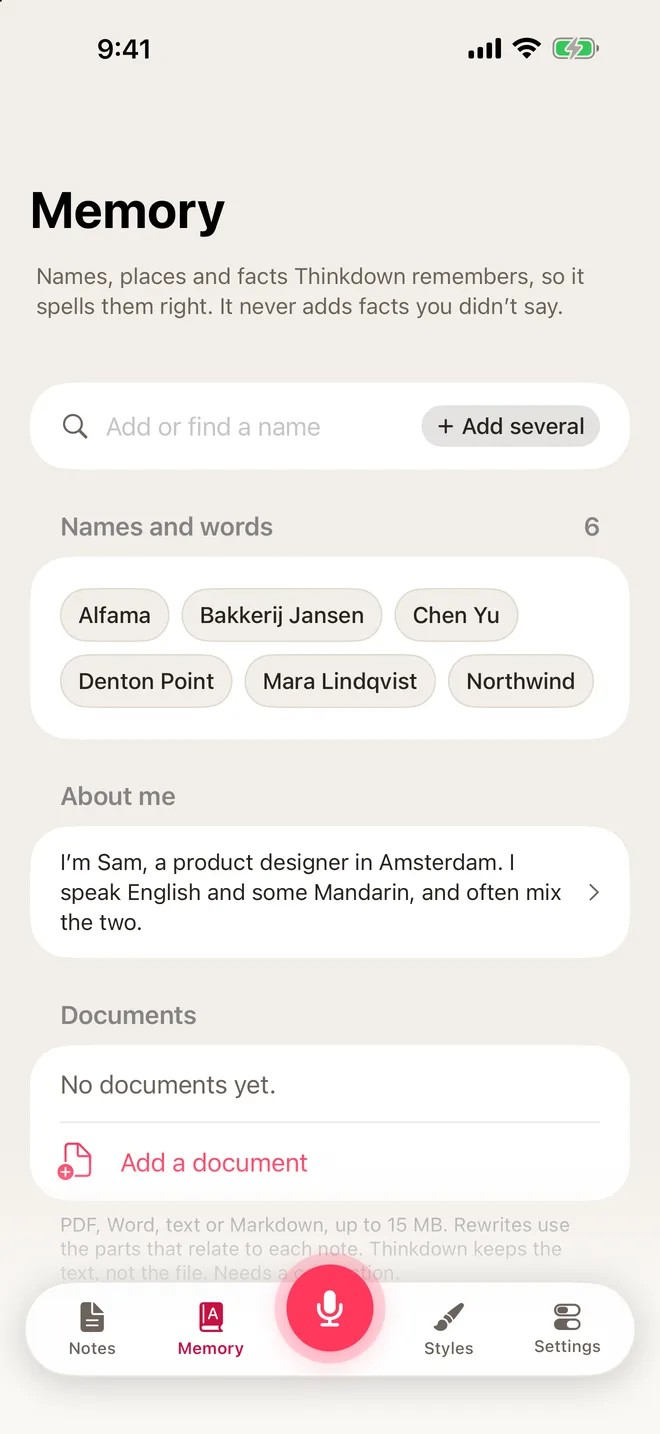
1. Add the names you say most
Open Memory and type a name into Add or find a name: your partner, your coworkers, your street, your project. Have a list? Use Add several and paste it in.
2. Record a thought
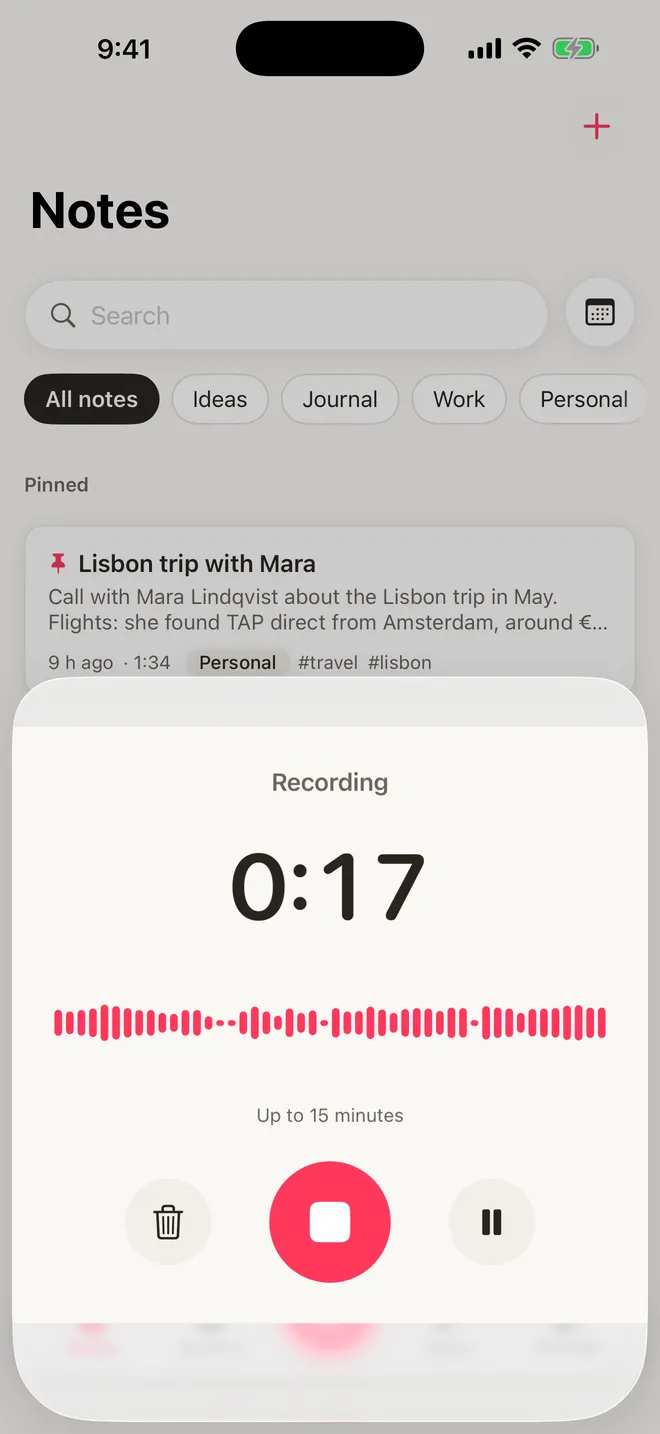
Tap the record button and talk. Ums, restarts and switching languages mid-sentence are all fine. Thinkdown detects the language on its own. Pause if you need to, then stop.
3. Read your note and its corrections
A few seconds later you get a tidy note with a title. Under it, Corrections shows every word Thinkdown fixed, so you can see exactly what changed.
Lisbon trip with Mara
Call with Mara Lindqvist about the Lisbon trip in May.
- Flights: she found TAP direct from Amsterdam, around €180
- Stay in Alfama, near the Miradouro de Santa Luzia
- Ask Chen Yu if he can look after the cat
Want to see exactly what you said? Tap Transcript at the top of the note. If Thinkdown hears a new name, it suggests it under the note. Tap it to remember it.
4. Fix a word once
If a word still came out wrong, select it and choose Fix (on iPhone and iPad it's the first item in the edit menu). Type what you meant. The note changes, and Thinkdown remembers it for next time.
5. Try another style
Tap Rewrite on a note and pick a style: Journaling, Clear & Simple, List, Email or LLM Prompt. On the Styles page you can make your own with one line of plain instructions.
Everything else, in a minute
- Write instead of talk. Tap the pencil for a new note and type. Markdown works: # for a heading, - for a list, - [ ] for a to-do.
- Ask your notes. Type a question in the search box and choose Ask your notes. You get an answer from what you wrote, with links to the notes it came from.
- Find a day. The calendar beside search jumps to any day and shows your writing streak.
- See where you were. The map beside search shows your notes by place.
- Tags and folders. Each note gets a few tags. Tap a tag to see every note with it.
- Weather and photos. A note can show the weather where you recorded it. On iPhone, iPad and Mac, journal notes show that day's photos.
- Record without opening the app. Use your Apple Watch, ask Siri to record a note, add it to Shortcuts, or use the Chrome extension.
- Lock it. Turn on the app lock in Settings to open Thinkdown with Face ID, Touch ID or your passcode.
- Take your notes anywhere. Settings › Notes › Other apps lets you import notes, or export all of yours.
Thinkdown works on iPhone, iPad, Mac, Apple Watch and the web at app.thinkdown.app, always in sync.
Tell me what you think
I'm Xie, and I make Thinkdown. If something is confusing, broken or missing, I'd really like to know. Go to Settings › Help, or write to [email protected]. I read every message.